Coding From the Himalayas With an Offline AI Agent
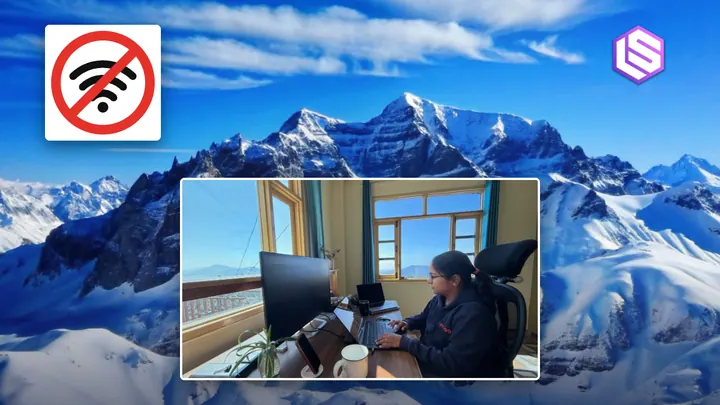
When we talk about working remotely , we take a lot of things for granted, especially reliable internet and power. But sometimes, working remotely means trying to get something done on a flight, during a long train ride, or somewhere with little or no network. I moved to the foothills of the Himalayas a year ago. I love the peace of living here, but it also comes with its own challenges, including network and power outages . Things I didn’t think about as much before are now part of planning my work. I work as a Principal Engineer at Thomson Reuters , where I spend most of my time coding and reviewing my teammates’ code. Coding agents are already a big part of my everyday workflow, which made me curious about how much of that workflow I could keep using offline. If you’re someone like me, who enjoys working with technology but also finds peace in quiet, remote places where the network doesn’t always cooperate, this article is for you. It’s also for anyone who has wondered whether a coding agent can run entirely on their laptop, with the internet switched off. I tried running a coding agent locally on my laptop to see how much work I could actually get done offline. What can we do offline? A project already on your laptop gives us plenty to work with. We can ask an agent to explain an unfamiliar function, investigate a failing test, refactor a small piece of code, or help finish a feature. These tasks can run offline when the model, project dependencies and test tools are available locally. Downloading a new package or looking something up on the web will still need a connection. Where OpenCode fits OpenCode is an open-source coding agent that works with your project. You give it a task, and it can read files, propose edits and run commands such as the test suite. In our setup, its permission prompts let us review commands and changes before allowing them. I picked OpenCode because it lets me keep that workflow in the terminal while connecting to a model running on my own laptop. Ollama handles running the model; OpenCode handles the interaction with the project. Open-weight models, including Qwen , make this possible: their weights, the learned parameters used to generate responses, can be downloaded and run locally. With Ollama running Qwen on the same laptop, OpenCode can send its requests to a local service. We download everything first, then disconnect the internet for the coding task. Aider is another option if you prefer a guided editing workflow; it also supports Ollama. We are using OpenCode throughout this walkthrough so that the setup and results stay consistent. Choosing an open-source model Qwen comes in different sizes. I wanted a model we could run locally that could also use an agent’s tools. For context, here are published results for two Qwen sizes and another open-weight option, as reported in Qwen’s model card . LiveCodeBench v6 tests code generation on programming problems. BFCL-V4 evaluates function calling, which matters when a model needs to choose a tool and give it the right arguments. Higher scores are better on both. Model LiveCodeBench v6 BFCL-V4 Qwen3.5 4B 55.8 50.3 Qwen3.5 9B (used here) 65.6 66.1 gpt-oss-20b 74.6 Not reported The above table scores reported in Qwen’s model card , not measurements from this laptop. “Not reported” means the source does not provide that score. We’re using Qwen3.5 9B for this walkthrough. Its stronger published coding and tool-calling results than the 4B variant made it a useful starting point. The table doesn’t measure laptop speed or the whole OpenCode workflow; our offline file edits and tests are the check for that. Model size and memory Model Approx. download Qwen3.5 4B 3.3–4.0 GB Qwen3.5 9B (used here) 6.6–7.6 GB Qwen3.5 27B 17–20 GB Ollama lists all available sizes ; downloads vary by runtime format. Download size isn’t a RAM requirement. Voltti budgets 12–16 GB of memory for a 6.6 GB Qwen3.5 9B build. Our 64k-token OpenCode configuration may need more, so leave room for context and other apps. How OpenCode performed in benchmarks OpenCode has also been tested beyond small demos. The research preprint The Scaffold Effect in Coding Agents compared OpenCode, Goose and OpenHands-SDK on 50 Terminal-Bench Pro tasks using two cloud models. Here are the pass rates reported in Table 2. Coding agent Qwen3.6 Plus MiniMax M2.5 Goose 48% [34–62%] 38% [24–52%] OpenCode 50% [36–64%] 46% [32–60%] OpenHands-SDK 50% [36–64%] 46% [32–60%] The brackets show 95% confidence intervals. The authors caution that most differences in pass rate were not statistically clear. The study also reported substantially higher token use for OpenCode : about 40 times Goose’s tokens per solved task. These runs used cloud APIs and different models from ours, so they do not predict how local Qwen3.5 9B will perform. Initial setup While you still have access to the internet, follow the complete setup in the GitHub README . It covers installing the tools, downloading the project, and installing OpenCode 1.19.4 . The project includes the examples, tests and configuration for using Qwen locally. Once that is ready, keep Terminal A open in the project folder. Before starting, it helps to know what opencode.json does . This is OpenCode’s project configuration . In our file, model and small_model both select Qwen3.5 9B, and baseURL points to Ollama at http://127.0.0.1:11434/v1. Only the local provider is enabled. It also asks before editing files or running shell commands, and blocks the web tools. The full configuration is in the repository. We still disconnect the network for the offline test. We’ll use Terminal A for OpenCode and our tests. In Terminal B, start Ollama and leave it running. This command keeps the model service on localhost , an address inside the same Mac, and disables Ollama’s cloud features . OLLAMA_HOST=127.0.0.1:11434 OLLAMA_NO_CLOUD=1 OLLAMA_CONTEXT_LENGTH=65536 ollama serve Back in Terminal A, download Qwen and wait for the download to finish. We’ll check that the agent responds before disconnecting the internet. ollama pull qwen3.5:9b Starting with an expense calculator The example adds five expenses, including a refund. The correct total is 25.50. Run the starting program in Terminal A. python3 expense_total.py The function replaces its total on every iteration. Before asking the agent to fix it, run the existing tests. python3 -m unittest -v Three cases fail: decimal arithmetic, refunds and the sample expenses. Empty and single-item input already pass. Using existing tests gives the agent a concrete target. It also gives us a way to check the result independently of its explanation. Trying OpenCode while online While online, open OpenCode directly from the project folder. The --pure option disables external plugins. The project configuration points both the main and helper model at Ollama; disconnecting the network later is what makes the run offline. .tools/node_modules/.bin/opencode --pure Check that Qwen3.5 9B local is selected. Enter this diagnostic prompt in OpenCode. Read expense_ total.py and run the tests. Explain the bug without editing any files. OpenCode read the source and searched for the tests. It initially proposed pytest, although this project uses Python’s built-in unittest. The permission prompt gave me a chance to inspect the command before allowing it. For the next task, I would include the exact test command in the prompt: python3 -m unittest -v. Once the local setup responds, exit OpenCode. Keep Ollama running in Terminal B. /exit Turning off the internet Turn Wi-Fi off and disconnect Ethernet or phone tethering if either is connected. Localhost still works because the request stays inside the Mac. In Terminal A, check Ollama’s local API. curl --noproxy '*' --fail http://127.0.0.1:11434/api/tags Then try an external address. curl --noproxy '*' --connect-timeout 5 --max-time 10 --head https://example.com These checks establish what happened at the time of capture: the local servi